


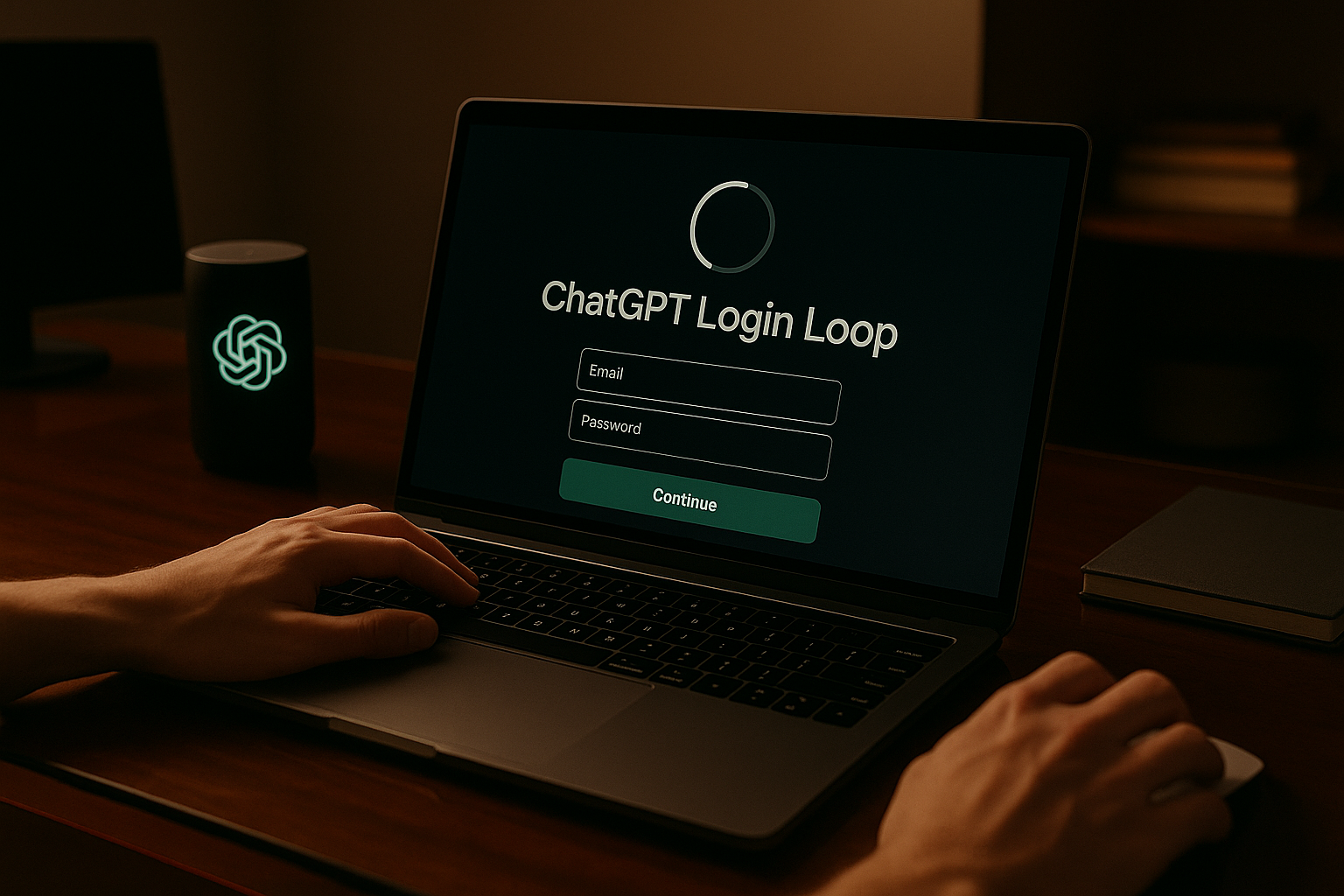
ChatGPT login loop stopping you from accessing the platform? Learn why it happens and how to fix it with easy, reliable step-by-step solutions.
What Is the ChatGPT Login Loop Issue?
You go to log in to ChatGPT. You enter your email, your password, maybe even a two-factor code. It seems to load—and then suddenly, you’re right back where you started: the login screen. Again. And again. This frustrating cycle is known as the ChatGPT login loop.
This issue means the platform is not properly completing your sign-in request. Sometimes, it feels like your credentials are accepted but the system just refreshes the login page instead of moving forward. The problem is widespread and doesn’t usually mean your password is wrong or your account is broken. It’s often the result of browser behavior, expired session data, or temporary bugs in the platform’s backend.
Why this matters to users:
- 🔁 Blocks Access Entirely: You can’t reach ChatGPT at all until the loop is resolved.
- 🤯 No Clear Explanation: The system doesn’t give you an error message or hint.
- 🧭 Wastes Time and Effort: You keep trying, not knowing what part is failing.
- 🔒 Raises Security Concerns: It may feel like something is wrong with your account, even when there isn’t.
- 📉 Disrupts Daily Use: For professionals, this means tools are unavailable when needed most.
Let’s explore what causes the ChatGPT login loop—and how to get past it for good.
📚 Table of Contents
• 🔍 Most Common Causes of ChatGPT Login Loop
• 🛠️ How to Fix ChatGPT Login Loop
• 🧪 Advanced Troubleshooting Tips
• 💬 User Experiences
• ❓ FAQ – ChatGPT Login Loop
• 📚 Related Guides
🔍 Most Common Causes of ChatGPT Login Loop
When ChatGPT keeps sending you back to the login page, the issue is rarely with your credentials. It’s usually related to how your browser handles session data or how the server processes the sign-in request.
| ⚠️ Problem Title | 💬 Explanation |
|---|---|
| 🔒 Expired Session Tokens | Your browser may be holding onto old tokens that prevent login completion. |
| 🧩 Cache or Cookie Conflicts | Corrupt or outdated data may interfere with sign-in scripts. |
| 🌐 Incompatible Browser Settings | Privacy settings or blocked cookies can disrupt the login flow. |
| 🧹 Local Storage Overload | ChatGPT relies on storage that may be full or misconfigured. |
| 🔌 Extensions Blocking Login Scripts | Ad blockers or privacy plugins can stop ChatGPT from finishing login. |
| 🚫 VPN or Proxy Issues | These can alter how ChatGPT verifies your region or IP behavior. |
| 📶 Unstable Internet During Login | If your connection drops mid-login, it can fail silently. |
| 🛠️ OpenAI Server Maintenance | Backend changes may prevent session completion temporarily. |
| 🔄 Forced Re-authentication Loop | A backend mismatch may cause the system to ask you to log in repeatedly. |
| 📱 Mobile Browser Errors | On some mobile browsers, redirection may not function properly. |
🛠️ How to Fix ChatGPT Login Loop
If ChatGPT keeps redirecting you to the login screen, don’t worry — this is a solvable issue. Try these clear, step-by-step solutions to break the cycle and get back in.
1. 🧹 Clear Cache and Cookies
🧠 Why it works:
Old or mismatched cache and cookie data can block your session from finalizing.
📌 How to do it:
• Open your browser settings
• Go to “Privacy & Security”
• Select “Clear browsing data”
• Clear cookies and cached files
• Restart your browser and try again
2. 🔐 Log Out on All Devices
🧠 Why it works:
Multiple open sessions can conflict and trigger login redirects.
📌 How to do it:
• Visit OpenAI.com and log out from any open browser
• Log out on all mobile or desktop apps
• Start a new login session from just one device
3. 🧩 Disable All Extensions
🧠 Why it works:
Extensions that modify web behavior can interfere with the sign-in process.
📌 How to do it:
• Open your browser’s extension manager
• Disable all plugins temporarily
• Refresh the login page
• Try signing in again
4. 🌍 Switch Browsers
🧠 Why it works:
A different browser offers a fresh environment without previous session data.
📌 How to do it:
• Download an alternative browser (Chrome, Firefox, Edge, Safari)
• Visit chat.openai.com
• Sign in with your credentials
• Confirm if the loop occurs again
5. 🔄 Use Incognito Mode
🧠 Why it works:
This allows you to log in without any stored data from past sessions.
📌 How to do it:
• Open a new incognito or private window
• Go to chat.openai.com
• Attempt to log in as normal
6. 📱 Try a Different Device
🧠 Why it works:
This helps rule out device-level issues or browser conflicts.
📌 How to do it:
• Switch to another device (phone, tablet, second computer)
• Use the same account
• Check if login succeeds
7. 📶 Check Your Network
🧠 Why it works:
A VPN or a weak connection may interfere with proper session registration.
📌 How to do it:
• Turn off VPN if active
• Switch from mobile data to Wi-Fi (or vice versa)
• Restart your router
8. 🧭 Reset Site Permissions
🧠 Why it works:
ChatGPT may be denied the necessary browser permissions to complete login.
📌 How to do it:
• Click the lock icon next to the address bar
• Go to “Site settings”
• Reset permissions to default
• Refresh and log in again
9. 🕒 Wait and Retry Later
🧠 Why it works:
If there’s a temporary server issue, retrying after some time may resolve it.
📌 How to do it:
• Wait for 10–30 minutes
• Avoid refreshing too frequently
• Try again after a short pause
10. 📧 Contact OpenAI Support
🧠 Why it works:
If all steps fail, your account may need backend intervention to reset sessions.
📌 How to do it:
• Visit help.openai.com
• Submit a support request describing the login loop
• Include your account email and what you’ve already tried
🧪 Advanced Troubleshooting Tips
If the login loop persists despite trying all basic steps, try these deeper fixes tailored for technically confident users.
1. 🛠️ Check Developer Console for Errors
🧠 Why it works:
Error messages during login can pinpoint script failures or blocked requests.
📌 How to do it:
• Right-click > Inspect
• Go to the “Console” tab
• Attempt login and watch for red messages
• Note the source of any error
2. 📁 Delete Local Storage
🧠 Why it works:
Corrupted local storage can block login behavior even when cookies are cleared.
📌 How to do it:
• Open Developer Tools
• Go to the “Application” tab
• Under “Local Storage,” find chat.openai.com
• Clear all stored data
3. 🌐 Update Your DNS Settings
🧠 Why it works:
Slow or faulty DNS servers may fail to resolve login endpoints consistently.
📌 How to do it:
• Open network settings
• Set DNS to 8.8.8.8 and 8.8.4.4 (Google)
• Restart your browser and try again
4. 🔐 Check Firewall and Antivirus Settings
🧠 Why it works:
Security tools can block cookies or JavaScript that ChatGPT depends on for login.
📌 How to do it:
• Temporarily disable firewall or antivirus software
• Try logging in again
• Re-enable protection afterward
💬 User Experiences
I was stuck in a login loop all morning. Incognito mode worked instantly. I now use it by default just to avoid cache issues.
— Gabriel, Financial Analyst
It kept sending me back to the sign-in screen until I cleared cookies and restarted my browser. Then it logged me in with no problem.
— Julia, HR Specialist
It turned out my VPN was causing the issue. Once I turned it off, ChatGPT stopped looping and let me in immediately.
— Wei, Software Developer
❓ FAQ – ChatGPT Login Loop
🔁 What is the ChatGPT login loop?
• It’s when you try to log in but keep getting redirected back to the sign-in screen without an error.
🧹 Will clearing cache fix the loop?
• In most cases, yes — especially if the issue is caused by outdated or conflicting session data.
🧩 Can browser extensions cause login loops?
• Yes. Ad blockers or security tools may prevent critical login scripts from executing.
🌐 Does incognito mode help?
• It often does. It uses no stored data and can bypass most cache-related issues.
📱 Why does it work on my phone but not on my computer?
• Local data or browser settings might be interfering only on one device.
📧 Should I reset my password?
• Only if you suspect incorrect credentials. Login loops are not usually password-related.
📶 Do VPNs cause login issues?
• Yes, especially if they trigger unusual login behaviors or change regions.
📧 When should I contact support?
• If nothing works after trying different browsers and devices, it’s time to reach out.
🗣️ What Do You Think?
Have you experienced the ChatGPT login loop? If you found a solution that worked for you, feel free to share it in the comments. And if you’re still stuck, ask — someone else here may have the answer.
📚 Related Guides
• ChatGPT Keeps Refreshing
• ChatGPT Rate Limit Exceeded
• ChatGPT Error While Generating
• ChatGPT Temporarily Unavailable
📢 About the Author
At AIFixup, our team brings over 5 years of hands-on experience in conceptualizing, developing, and optimizing AI tools. Every piece of content you see on this platform is rooted in real-world expertise and a deep understanding of the AI landscape.
Beyond our public content, we also share exclusive insights and free prompt collections with our subscribers every week. If you’d like to receive these valuable resources directly in your inbox, simply subscribe to our Email Newsletter—you’ll find the sign-up form at the bottom right corner of this page.








Leave a comment