


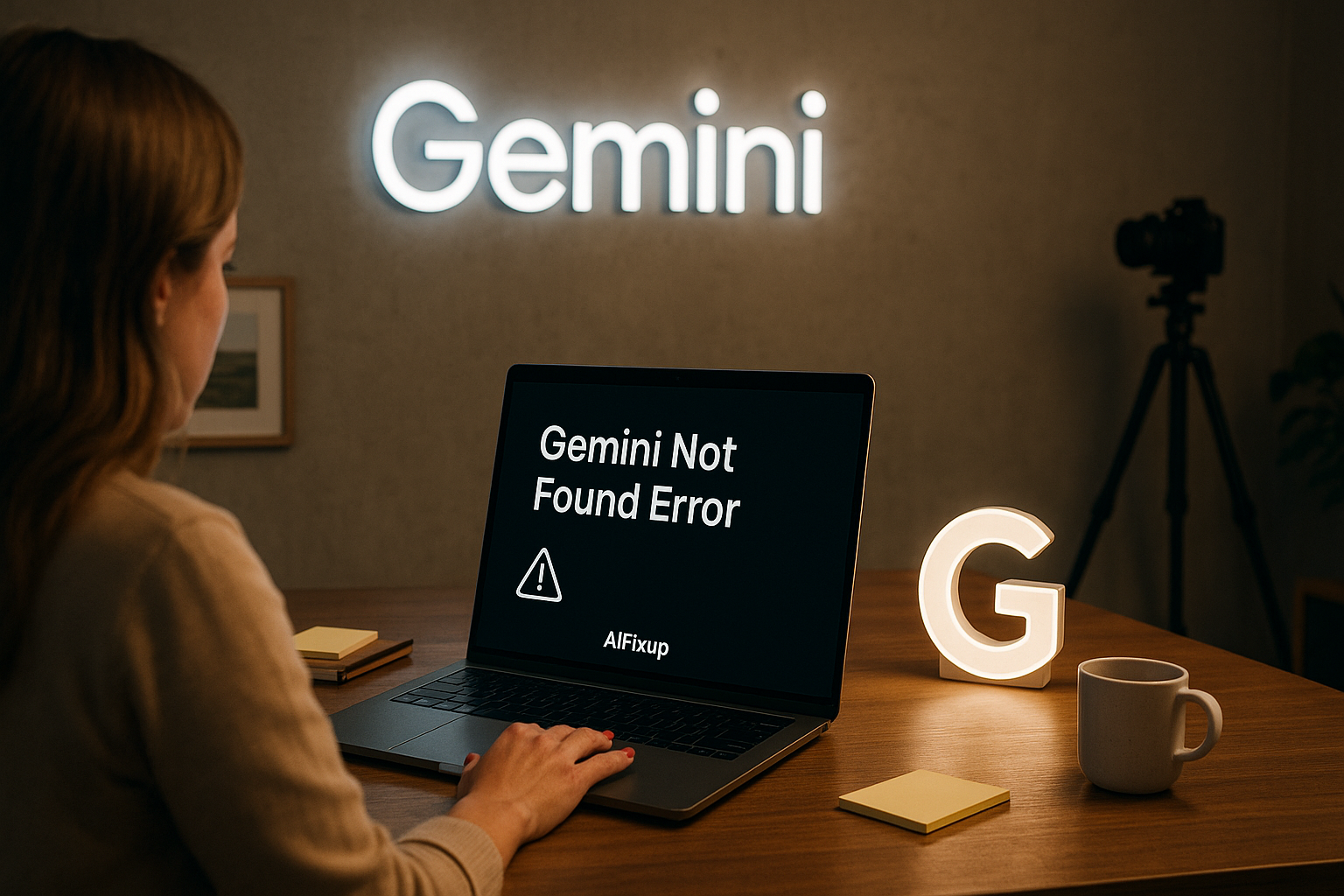
Gemini Not Found Error can stop your progress instantly—discover why this error appears and how to fix it with easy, step-by-step guidance.
What Is the Gemini Not Found Error?
Imagine this: you click a link, open a Gemini project, or run a command—and instead of loading properly, you see a message saying “Not Found”. This message, known as the Gemini Not Found Error, is a frustrating and common issue. It signals that Gemini was unable to locate the requested file, page, service, or content.
This error can appear in many situations: when accessing saved chats, launching tools, trying to load a Gemini page from a bookmark, or using integrations through Google Workspace. Whether you’re a developer, a project manager, or a casual user, the message is vague—and it blocks progress.
“Not Found” usually means Gemini is looking for something that either does not exist anymore, was never created, or cannot be accessed due to permission or technical issues. It can happen on desktop, mobile, browser-based apps, or APIs. The good news? It’s almost always solvable.
Here’s why resolving this is important:
🔍 Breaks Navigation and Workflows: If content isn’t found, your tasks are interrupted.
📁 Prevents Access to Saved Work: Files or sessions may seem “lost” but are often recoverable.
🧭 Causes Confusion About Account Sync: Users may think data is missing when it’s simply not visible.
🔐 Can Indicate Permission or Visibility Problems: Some “Not Found” messages are tied to account settings.
🛠️ May Reveal Broken Links or App Version Issues: Older links and bookmarks often stop working.
Now let’s explore what typically causes the Gemini Not Found Error.
📚 Table of Contents
• 🔍 Most Common Causes of Gemini Not Found Error
• 🛠️ How to Fix Gemini Not Found Error
• 🧪 Advanced Troubleshooting Tips
• 💬 User Experiences
• ❓ FAQ – Gemini Not Found Error
• 📚 Related Guides
🔍 Most Common Causes of Gemini Not Found Error
A “Not Found” message may look simple, but it can stem from a wide range of causes. The table below explains the most frequent reasons behind the Gemini Not Found Error.
| ⚠️ Problem Title | 💬 Explanation |
|---|---|
| 🔗 Broken or Expired Link | The link you clicked may refer to deleted or outdated Gemini content. |
| 🧾 Incorrect File or Chat ID | Gemini cannot find a file or chat with the provided reference. |
| 🧑💼 Accessing Another User’s Resource | Some items are restricted to their original creator’s account. |
| 🔒 Permission Restrictions | The content may exist, but you don’t have permission to view it. |
| 🧹 Deleted or Archived Resource | The file, session, or page was removed by the user or system. |
| 🔄 Account Sync Delay | Gemini data may not have synced fully between desktop and mobile. |
| 🧠 Using the Wrong Google Account | You may be logged into an account that lacks access to the file or service. |
| 🧩 URL Typing Error or Missing Extension | Manually typed or bookmarked URLs may be incomplete or incorrect. |
| 📲 Old App Version | Outdated Gemini apps may not recognize newer links or resources. |
| 🌐 Regional Feature Unavailability | Some tools or links may be restricted by geographic location. |
🛠️ How to Fix Gemini Not Found Error
If you’re facing the Gemini Not Found Error, don’t worry—it can almost always be resolved through a few logical steps. Below are the most effective ways to fix it.
1. 🔄 Refresh or Reload the Page
🧠 Why it works:
Temporary loading failures can prevent Gemini from locating the correct resource.
📌 How to do it:
• Press Ctrl + R (or Cmd + R) to reload
• If on mobile, swipe down to refresh
• Retry the action
2. 🔗 Recheck the Link or Bookmark
🧠 Why it works:
The error often results from a broken, outdated, or incomplete URL.
📌 How to do it:
• Compare the link to a working version from your Gemini dashboard
• Avoid using old bookmarks
• Always access Gemini resources through your current account
3. 🧑💼 Confirm You’re Logged Into the Correct Account
🧠 Why it works:
Switching accounts can make Gemini “lose sight” of saved resources.
📌 How to do it:
• Log out of Gemini completely
• Sign in with the account originally used to create the content
• Retry the same action
4. 📁 Check for Deleted or Archived Content
🧠 Why it works:
You may be trying to access a file that was intentionally or accidentally removed.
📌 How to do it:
• Visit your Gemini archive or trash section (if available)
• Restore the content if it’s recoverable
• Reopen the link after restoring
5. 🔐 Request Access If It’s Not Yours
🧠 Why it works:
Trying to access another user’s content will result in a “Not Found” error unless shared.
📌 How to do it:
• Contact the file or session owner
• Request them to share it directly with your account
• Wait for access before retrying
6. 🧩 Update the Gemini App or Browser
🧠 Why it works:
Old versions may not support links created with new logic or tools.
📌 How to do it:
• Go to the app store (mobile) or browser settings (desktop)
• Update Gemini to the latest version
• Restart the app and try again
7. 📲 Use a Different Device or Network
🧠 Why it works:
Sometimes device-level errors or weak networks cause failed resource calls.
📌 How to do it:
• Open Gemini from a different device
• Try connecting using a different internet source (Wi-Fi or mobile data)
• Retry the action
8. 🧠 Try Accessing Through Gemini Dashboard
🧠 Why it works:
Many users try to open files directly without using the correct dashboard path.
📌 How to do it:
• Log into Gemini
• Navigate to your list of projects or recent sessions
• Open the item directly from within the app
9. 🧹 Clear Cache and Cookies
🧠 Why it works:
Stored browser data may interfere with new link paths.
📌 How to do it:
• Go to browser settings > Privacy > Clear browsing data
• Clear cache and cookies
• Reload Gemini
10. 🌍 Verify Regional Availability
🧠 Why it works:
Some Gemini features or links may not be available in all locations.
📌 How to do it:
• Visit Gemini’s official region support page
• Use a supported region or VPN if necessary
• Retry loading the resource
🧪 Advanced Troubleshooting Tips
If you’ve tried the basics and the Gemini Not Found Error still persists, try these advanced steps for deeper resolution.
1. 🔧 Analyze URL Parameters
🧠 Why it works:
Some Gemini resources rely on structured URLs with IDs or tokens.
📌 How to do it:
• Inspect the URL format
• Compare it with working links
• Remove extra characters or query strings and try again
2. 🔍 Review Network Logs for Blocked Requests
🧠 Why it works:
Your browser might be blocking Gemini’s request to load the page or file.
📌 How to do it:
• Open DevTools > Network tab
• Refresh Gemini and watch for failed requests (404, 403)
• Identify blocked resources
3. 🧠 Use Gemini’s Recovery Tool (if available)
🧠 Why it works:
Some accounts offer recovery options for lost or unindexed files.
📌 How to do it:
• Go to Gemini Help > Recovery tools
• Search by file name or ID
• Follow the steps to retrieve missing content
4. 🛠️ Contact Gemini Support
🧠 Why it works:
Some backend errors can only be resolved by Gemini’s internal team.
📌 How to do it:
• Take a screenshot of the error
• Describe when and how it occurred
• Submit a support ticket
💬 User Experiences
I had saved a link to a Gemini document but got a “Not Found” error later. I realized I was logged into the wrong Google account. Once I switched back, it loaded.
— Hanna, Content Strategist
My mobile app kept showing “Not Found” when opening project files. I updated to the latest version and everything worked again.
— Rizwan, UX Researcher
I sent a Gemini link to my coworker, but they couldn’t open it. It turned out I hadn’t shared it properly. After I updated the permissions, they could access it right away.
— Jason, Product Analyst
❓ FAQ – Gemini Not Found Error
🔗 Why does Gemini show a “Not Found” message?
• It means the system couldn’t locate the requested content—often due to broken links or permission issues.
🧑💼 Does this happen if I’m logged into the wrong account?
• Yes. If the content was created under a different account, Gemini won’t show it.
📁 Can deleted files cause the error?
• Absolutely. Once removed or archived, Gemini will no longer display them via direct links.
🔐 What if I’m accessing someone else’s resource?
• You’ll need explicit permission—otherwise, Gemini may respond as if the file doesn’t exist.
📲 Why does this happen more on mobile?
• Older app versions or sync delays may lead to temporary “Not Found” errors.
🧠 Can I recover a missing file?
• If it was recently deleted, check the archive or trash section in Gemini.
🌐 Is regional access a factor?
• In some cases, yes. Features not available in your country may trigger this error.
🧪 What if the link works for others but not for me?
• Make sure you’re signed into the right account and have the necessary access.
🗣️ What Do You Think?
The Gemini Not Found Error may look like a dead end, but in most cases, it’s not. With the right steps, you can recover your work, restore access, and move forward confidently. If you found a unique solution that helped, feel free to share it—it might help someone else too.
📚 Related Guides
• Gemini Update Stuck
• Gemini iOS Not Working
• Gemini Android Not Working
• Gemini Broken After Update
📢 About the Author
At AIFixup, our team brings over 5 years of hands-on experience in conceptualizing, developing, and optimizing AI tools. Every piece of content you see on this platform is rooted in real-world expertise and a deep understanding of the AI landscape.
Beyond our public content, we also share exclusive insights and free prompt collections with our subscribers every week. If you’d like to receive these valuable resources directly in your inbox, simply subscribe to our Email Newsletter—you’ll find the sign-up form at the bottom right corner of this page.









Leave a comment